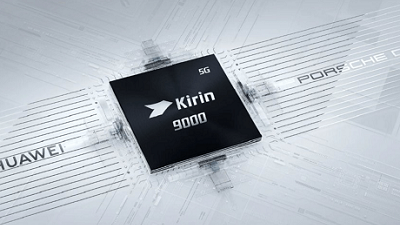
 According to an industry leader, Huawei may be the first manufacturer to announce a 3nm chipset Is Huawei about to pull a special card from its sleeve in the battle for smartphone supremacy? According to an industry leader, its flagship processor is about to get a boost, according to a report in GizmoChina. Strangely enough, it has just been a few months since Huawei announced the Kirin 9000 processor. The chipset comes in two variants – the Kirin 9000 and Kirin 9000E – and is found only in the Mate 40 series smartphone, GizmoChina reported. Now, an industry leader has disclosed details about the next flagship Kirin processor which has been reported to be called the Kirin 9010. The info about the new Kirin processor comes from the leaker @RODENT950, and according to the tweet, the next-gen Kirin processor should arrive as the Kirin 9010 and it will be a 3nm chipset, GizmoChina reported. The Kirin 9000 launched as the first 5nm processor for Android devices and after its announcement came the Samsung Exynos 1080 and the Qualcomm Snapdragon 888. While most people will expect Huawei to stick to the 5nm process for at least two years, this leak reveals it is making the jump to 3nm for its next mobile chipset, which if all goes well, should launch this year and possibly appear in the Mate 50 series by Q4, GizmoChina reported. Speculation is that other chip manufacturers such as Qualcomm could follow suit and switch to 3nm for their next-gen flagship chipset if the news about Huawei’s 3nm chipset is true. The San Diego-based company is expected to announce a Snapdragon 888 Plus chipset later this year, which should be a 5nm processor like its sibling but with a higher clock speed, GizmoChina reported. Samsung, on the other hand, has been reported to be skipping the 4nm process and jumping to 3nm. Apple is also expected to announce 3nm processors that will be built by TSMC but it is not expected to arrive until 2022. So there is a chance Huawei may be the first manufacturer to announce a 3nm chipset. Chip processors are defined in nanometers (nm), in which the number defines the distance between transistors and other components within the CPU. The smaller the number, the more transistors that can be placed within the same area, allowing for faster, more efficient processor designs. Smaller transistors also consume less energy, which means lower power consumption. And because of lower power consumption, there’s lower heat dissipation, meaning cooler processors. It isn’t as easy as it sounds though – the process of shrinking these processes. Making smaller transistors requires very precise instruments and machines, which is why processors built on smaller processes will be costlier than older, larger ones. Moore’s Law, an old observation that the number of transistors on a chip doubles every year while the costs are halved, held for a long time but has been slowing down lately. Back in the late 90s and early 2000s, transistors shrunk in size by half every two years, leading to massive improvements on a regular schedule. But further shrinking has gotten more complicated. To get better informed visit OUR FORUM.  You can get a Microsoft Account for free, but that doesn't begin to describe its value, especially if you use that account for crucial email and cloud storage. Follow these seven steps to establish a solid baseline of security and protect that account from intruders. What's your most valuable online account, the one most deserving of protection? If you use a Microsoft account to sign in to a Windows PC, that account and its associated email address should be the one you guard most jealously. That's especially true if you use that Microsoft account for OneDrive storage and Office 365 documents. In this post, I list seven steps you can take to help you lock that account down so it's safe from online attacks. As always, there's a balancing act between convenience and security, so I've divided the steps into three groups, based on how tightly you want to lock down your Microsoft account. (It's worth noting that this article is about consumer Microsoft accounts used with Home and Personal editions of Office 365, Microsoft 365, and OneDrive. Security settings for business and enterprise Microsoft 365 accounts are managed by domain administrators through Azure Active Directory, using a completely different set of tools.) Baseline Security is sufficient for most ordinary PC users, especially those who don't use their Microsoft email address as a primary factor for signing in to other sites. If you're helping a friend or relative who's technically unsophisticated and intimidated by passwords, this is a good option. At a minimum, you should create a strong password for your Microsoft account, one that's not used by any other account. In addition, you should turn on two-step verification (Microsoft's term for multi-factor authentication) to protect yourself from phishing and other forms of password theft. When that feature is enabled, you have to supply additional proof of your identity when you sign in for the first time on a new device or when you perform a high-risk activity, such as paying for online purchase. The additional verification typically consists of a code sent as an SMS text message to a trusted device or in an email message to a registered alternate account. Baseline precautions are adequate, but you can tighten security significantly with a couple of extra steps. First, install the Microsoft Authenticator app on your iPhone or Android device and set it up for use as a sign-in and verification option. Then remove the option for using SMS text messages to verify your identity. With that configuration, you can still use your mobile phone as an authentication factor, but a would-be attacker won't be able to intercept text messages or spoof your phone number. The most extreme security, add at least one physical hardware key along with the Microsoft Authenticator app and, optionally, remove email addresses as a backup verification factor. That configuration places significant roadblocks in the way of even the most determined attacker. It requires an extra investment in hardware and it definitely adds some friction to the sign-in process, but it's by far the most effective way to secure your Microsoft account. You need a strong, unique password for your Microsoft account. The best way to ensure that you've nailed this requirement is to use your password manager's tools to generate a brand-new password. Generating a new password ensures that your account credentials are not shared with any other account; it also guarantees that an older password that you might have inadvertently reused isn't part of a password breach. The next step is to save a recovery code. If you're ever unable to sign in to your account because you've forgotten the password, having access to this code will save you from being permanently locked out. On the Microsoft Account Security Basics page, find the Advanced Security Options section and click Get Started. That takes you to the not-so-basic Microsoft Account Security page. Don't leave the Microsoft Account Security page just yet. Instead, scroll up to the Two-Step Verification section and make sure this option is turned on. The setup process is a fairly straightforward wizard that confirms you are able to receive verification messages. If you're using a modern smartphone with an up-to-date version of iOS or Android, you can safely ignore the prompts to create an app password for the mail client on those phones. Microsoft recommends that you have at least two forms of verification available in addition to your password. If you need to reset your password when two-step verification is enabled, you'll need to supply both of those forms of identification or you risk being permanently locked out. A free email address, such as a Gmail account, is acceptable if your security needs are minimal, but a business email address is a much better choice. If necessary, you can have a verification code sent to that address. More complete details can be found on OUR FORUM.
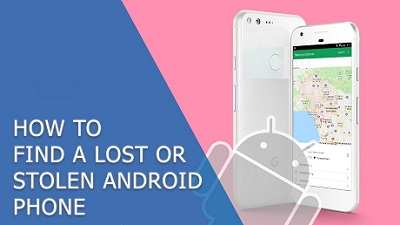 It can happen in the blink of an eye. You put your Android phone down on a counter at the checkout stand or feel a slight bump as you get off the subway, only to later realize your phone is missing. Regardless of how you lose it, be it theft or a simple mistake, losing your phone is a stressful experience. Losing your phone cuts off your access to the rest of the world; it is likely the most personal device you own. Replacing it is a costly nuisance. In the event your phone goes missing, don't panic! There are tools built into every Android phone that make it possible to lock and track down a lost phone with ease. But first, you'll need to take some steps now to set yourself up for success if and when your phone does go missing -- even if you only left it in the house. You can take a few steps now to be ready if you lose your phone. Do yourself a favor and turn on passcode and fingerprint authentication. Do yourself another favor and don't use facial recognition on your Android device. On most Android devices, the technology used for facial recognition can be easily tricked with something as simple as a photo of your face. Google's Pixel 4 and Pixel 4 XL are the exceptions here, as they use a more reliable system similar to Apple's Face ID. Next, create your passcode and set up fingerprint authentication in the Settings app under the Security section. I realize scanning a fingerprint or entering a PIN code every time you want to use your phone can be inconvenient, but the idea of someone having access to your photos, banking apps, email, and the rest of your personal info is downright scary. An extra step to unlock your phone is worth the effort when you consider the potential impact of exposing your personal info to a stranger. Any time you sign in to an Android device with a Google account, Find My Device is automatically turned on. Google's free Find My Device service is what you'll use should your phone ever go missing to track, remotely lock, and remotely erase it. Check to make sure Find My Device is enabled on your Android phone by opening the Settings app and going to Security & Location > Find My Device. Alternatively, if your device doesn't have a Security & Location option, go to Google > Security > Find My Device. Find My Device should be turned on. If not, slide the switch to the On position. Finally, double-check that the ability to secure and remotely erase the device is turned on by going to android.com/find on your computer, selecting your phone, and clicking Set Up Secure & Erase. A push alert will be sent to your phone -- tap it to finish the setup process. Samsung has long offered a Find My Mobile service to help Galaxy phone owners track down their lost phones. The service is separate from Google's Find My Device offering, and is something you can -- and definitely should -- set up. Not only does it give you a backup service you can use to track down a lost phone, but it also gives you tools that Find My Device doesn't have. With Samsung's service, you can do things like forcing remote backups or see if someone has swapped out your SIM card. You'll need to use your Samsung account to set up Find My Mobile. However, more recently, Samsung announced a new service called SmartThings Find. The new feature works like Apple's Find My app by crowdsourcing the location of a lost device, even if it's offline, but telling nearby Galaxy devices to look for its Bluetooth signal and report its location if it's found. All of which, of course, is done anonymously. As for SmartThings Find, you'll need to have a Galaxy device running Android 8 or newer. The setup process should already be taken care of as long as you're running the latest version of the SmartThings app. I had to go into the Galaxy Store app and update it myself, but once I did that the main page of the SmartThings app had a map showing the last location of my Galaxy Buds ($80 at Amazon), along with other Samsung devices that are linked to my account below the map. If it's not set up automatically, you may have to tap on a SmartThings Find button and follow the prompts to register your device. Once it's turned on, you can view the location of your device(s) by opening the SmartThings app and select SmartThings Find. Read this how-to in its entirety on OUR FORUM.
|
Latest Articles
|